USB Device Router
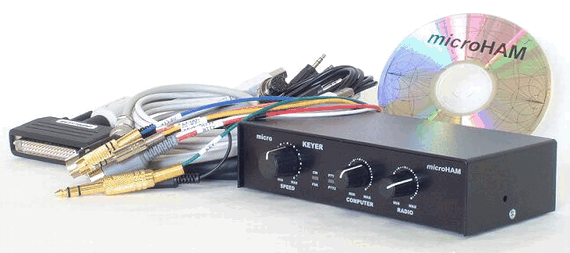
microKEYER� works in two modes - with or without a computer connected. The functions and behavior
of the keyer change based on operating mode.
If microKEYER�
is operating without computer, all
functions (Audio routing, PTT mode, CW transmission, FSK transmission, WinKey settings,
and CW mmories) are loaded after power up (after you switch on transceiver) from built-in
EEPROM memory.
If the computer is connected and router running,
microKeyer gets its configuration from settings stored in router software.
With the router software you can store power
up behavior to the keyer as well as change setting on the fly.
The requirements of each logging or
control software are different and is hard to find universal setting or all the programs
you might use. One configuration may be good for SSB contesting, another for digital
modes, and yet another for FSK RTTY etc ... For easy switching between loggers, Router has
configurable presets. You can store different keyer settings to these presets, rename each
preset and switch between presets in a second simply by touching the preset button.
Router software has several tabs.
The top level tab represents the device itself. If the computer is connected to
two or more keyers or several microHAM USB interfaces, each USB device
will have its own top level tab. The top level tab can be renamed to
indicate which device (e.g., USB interface: TS-870) it represents.
Below each top level device are
one or more tabs - microKEYER has five tabs. Each of these
tabs configures some function of the device.
Ports
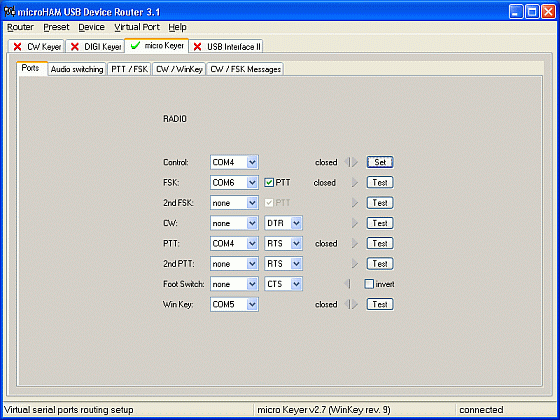
Here you can assign each
function to a virtual COM
port. Router allows you to create as many virtual COM ports as you
need. Three ports are generally sufficient: one for radio control (CAT),
one for FSK and one for WinKey. This screenshot displays
COM4 to COM7 (COM 1 and COM2 are physical COM ports and COM3 was the
internal modem on the test computer).
Now you can assign COM ports to their
functions (for example Radio control port to COM6, FSK port to COM7 etc..) and
store to any preset.
Audio
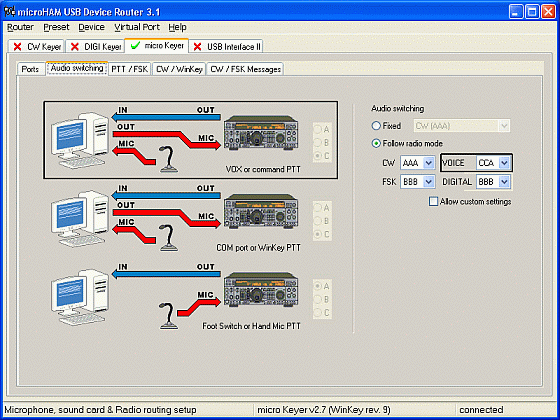
With micro KEYER you can define
an audio audio configuration for each preset. microKEYER can route three
audio lines from/to computer sound card (LINE IN, LINE OUT and MIC IN) and three lines
to/from transceiver: AF IN, AF OUT (radio rear panel) and MIC IN (radio front microphone
input). You can define the audio configuration for each operating state:
1. RX = receiving
2. TX - PTT = transmitting (any PTT
event except foot switch or hand mic PTT event)
3. TX - Foot switch = manual
transmission by foot switch or hand mic PTT (foot switch event)
Switching positions are:
1. A - Audio output from radio
goes to sound card Line In. Audio output from computer is disabled and microphone
is connected to the radio front mic jack.
2. B - Audio output from radio
goes to sound card Line In. Audio output from computer is enabled and goes to rear
radio AF In. Microphone is connected to the computer sound card mic jack.
3. C - Audio output from radio
goes to sound card Line In. Audio output from computer is enabled and goes
to radio front mic jack. Microphone is connected to the computer sound
card mic jack.
The audio switching states can be
stored into the keyer memory and will be applied after power up. If the
settings are changed, the new ones will be applied immediately without being
stored to the keyer memory. The current settings can be stored to a preset
(or stored as the power up default) at any time and recalled at the touch of a
preset button.
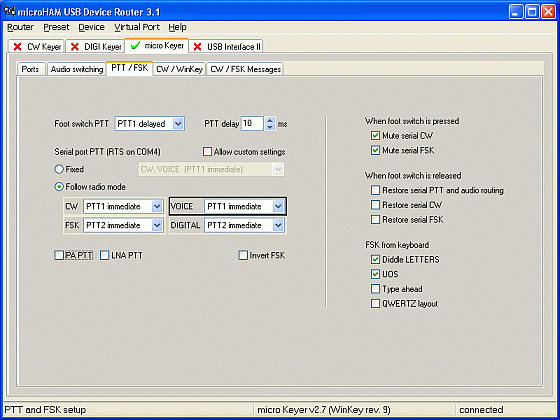
PTT / FSK
On this tab you can configure how the PTT
and FSK will work. In the Ports tabs you have defined which virtual COM
port will carry these signals. Now you need to define behavior of this
signals with coexistence of the foot switch or hand microphone PTT.
PTT:
microKEYER has three (3) PTT outputs: PTT1,
PTT2 and PA PTT. PTT1 and PTT2 are present at DB37 Radio Port connector
and are designed to switch the radio to TX. PTT1 is always wired
to the radio front panel mic jack and means "all time PTT" regardless
of mode. PTT2 is wired to the radio accessory jack and can be used with
Kenwood and Yaesu radios to mute the microphone input for
digital mode operation. On radios which do
not support this function, PTT2 can be used as general purpose PTT
output, and microphone muting can be accomplished by proper audio switching.
PA PTT is present at the micro KEYER rear panel RCA and is designed for
power amplifier switching. If the PA PTT box is checked, the PA PTT will be
activated for any PTT input.
PTT input event can be PTT from serial port, PTT from foot switch
(or PTT from hand mic) and PTT from WinKey.
You can define which PTT output (PTT1, PTT2, both or none) will be active
based on the PTT source.
FOOT SWITCH:
When foot switch is pressed, keyer can modify output signals.
It means not only audio switching (described in Audio tab), but can affect CW, PTT and FSK output lines.
First of all you can define delay for PTT1 and PTT2
lines going to the radio. This T/R sequencer removes all hot-switching,
because PA PTT is switched immediately and the radio is switched after
a defined delay. Select delay little bit more than is T/R delay of your
power amplifier.
Mute computer CW = if checked, CW generated from the computer on CW port will be suppressed while foot switch is pressed.
Mute computer FSK = if checked, FSK generated from the computer on FSK port will be suppressed while foot switch is pressed.
When foot switch is released there are several possibilities:
Restore PTT and Audio =
if checked, state of PTT from computer or WinKey will be copied to the
PTT outputs by their settings. If not checked, PTT will not be applied
until PTT from computer or WinKey will not be released. Audio settings
will be restored to RX state.
Restore CW
= if checked state of CW from computer will be copied to the CW output
according to its settings. If not checked it will be not applied until
PTT from the computer will not be released.
Restore FSK =
if checked state of FSK from computer will be copied to the FSK output
according to its settings. If not checked it will be not applied until
PTT from the computer will not be released.
There are also some additional settings.
FSK from keyboard is a setting for FSK output. If external PS/2
keyboard is attached to the keyer and the foot switch is pressed:
Diddle LETTERS will generates periodically "LETTERS" special character if nothing is typed and UOS automatically generates UOS function if box is checked.
Again, all these settings can be stored
to the keyer memory for power up behavior, immediately applied or
current setting can be stored to the presets.
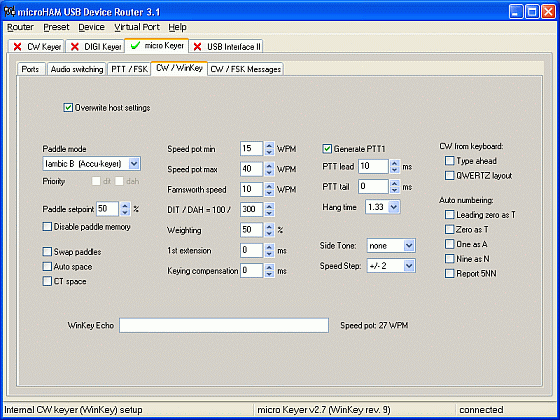
CW / WinKey
In this tab you can configure internal CW
keyer based on K1EL WinKey chip. Thanks to Steve, K1EL for the great
product. All settings are very well described at WinKey manual at http://k1el.tripod.com/wkinfo.html, so only very briefly.
CW output is wired in parallel with CW output from computer.
Mode = WinKey mode, Iambic A, Iambic B, Ultimatic and Bug Keyer
Paddle set point = level when the paddle should be closed
Swap paddles = swap paddle means reverse paddles for left handed or reverse wired paddle
Auto space = keyer generates automatic character space
CT space = keyer generates shorter automatic character space
Speed pot min/max = min/max value of the front panel speed knob (5 to 99 WPM range)
DIT / DAH = 100 / = Dit/Dah ratio from 1:2 to 1:4. Accepted number is from 200 to 400.
Weighting = weighting in percentage (from 10 to 90%)
1st extension = extension of the first dit or dah in milliseconds (QSK)
Keying compensation = extension of each dit and dah in milliseconds (QSK)
PTT lead in/tail = lead and tail delays of automatic PTT. PTT from WinKey must be allowed in PTT / FSK tab.
You can select frequency of CW side tone
generated by internal speaker. Side tone is generated by main micro
KEYER CPU, not by pin.5 of WinKey. This pin is reserved always for the
PTT or for second CW output for second radio. (Useful with feature SO2R
Extension box).
There are four selections for frequencies (1350, 675, 450, 338 Hz) and none.
Speed step defines step in WPM by pressing +/- on attached keypad.
All setting can be stored to the keyer
memory for power up behavior or can be immediately applied. Presets re
switching has no effect for WinKey settings.
Several setting can be changed and/or stored by external keypad or keyboard.
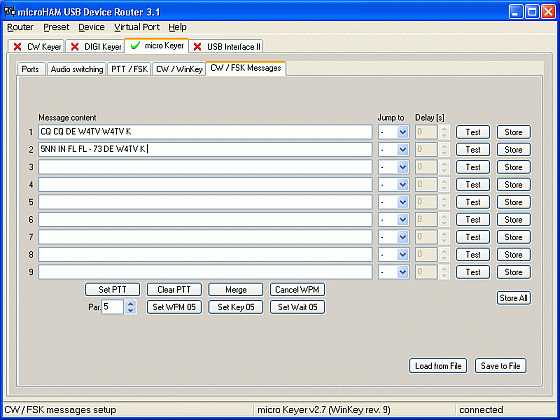
Messages
In this tab you can define CW memories
for WinKey. Up to 9 memories, each up to 50 characters long can be
stored to the keyer memory. Each memory can have delayed loop back or
can be chained to another memory. There are some special commands which
can be applied during memory playback.
Set PTT = force PTT event as WinKey PTT event
Clear PTT = forcing release PTT event as WinKey PTT event
Merge = merge two characters together ( [M]AS will sound AS .-...)
Set WPM = force WPM to selected speed regardless of position of speed knob
Cancel WPM = cancel selected forced WPM
Set Key = close CW output for selected time in seconds
Set Wait = wait selected seconds during playback
For looping or chaining messages the
"Jump to" combo box is reserved. Delay can be set in the delay box. You
can test typed message by pressing "Test" button or store it to the
keyer memory by pressing "Store" button. All messages can be stored at
once by pressing "Store All" button.
Messages can be stored and replayed also
using attached external keyboard or keypad. (1-9 keys on numerical
keyboard or F1 - F9). Presets re-switching has no effect on messages.
Presets
As already mentioned, you will soon find each
program may need a unique set of audio switching or virtual serial port assignments. In addition, each mode may require
its own unique settings. For easy switching between programs or modes you can use
preset buttons. All settings from the Ports, Audio, PTT/FSK and CW/WinKey"
tabs can be stored to any one of the preset buttons. Up to 12 presets
are allowed, each can switch the keyer to different settings. These buttons can be renamed to reflect
their function.
Note: Due to differences among
transceivers, all functions may not be available for every supported
transceiver. Automatic selection of mode and/or frequency
dependent configurations may not be supported for all radios. These
functions represent enhanced support and their absence does not mean that a
transceiver is unsupported.
Firmware
These settings are valid for the current firmware and router release. Thanks to OM2KW for his help with firmware
coding. In the future we plan to add more features and functions and these upgrades will be for free for all microKEYER owners.
Due to the
FLASH core technology of the internal microcontroller, changing firmware is as easy
as installing new version of the computer software. No special hardware of
software is required. Upgrades can be downloaded from www.microHAM.com
and uploaded to the microKEYER with router software.
Copyright � microHAM America, LLC
webmaster: W4TV